Building a BIF Generator
A deep dive into the BIF file format used by Netflix and YouTube for instant video seek thumbnails
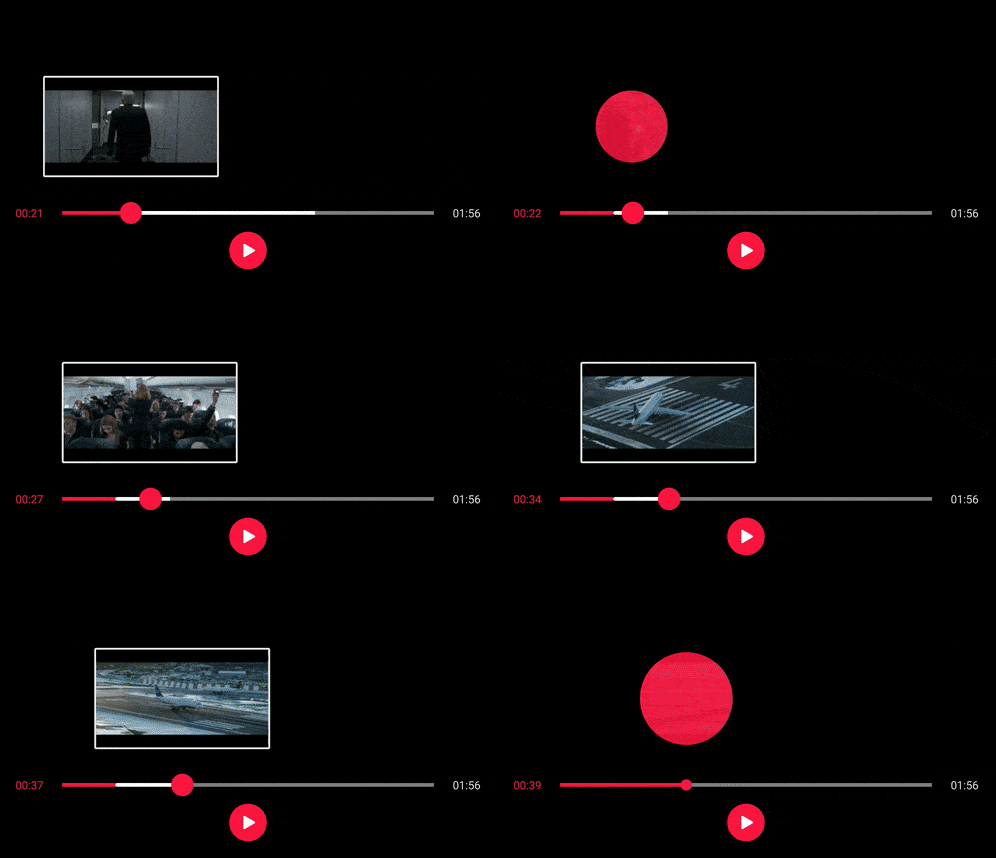
Hover over the progress bar on Netflix or YouTube and you'll see instant thumbnails showing what's at that position in the video. This capability is enabled by a simple file format called BIF.
What is BIF?
BIF stands for Base Index Frames. It's a binary file format that stores video seek thumbnails in a single package. Instead of serving thousands of individual images or decoding video frames on the fly, players load one BIF file and get instant access to any thumbnail.
This is the same format used by major streaming platforms: Netflix, Hulu, YouTube. When you scrub through a video timeline, you're looking at a BIF file in action.
Why it matters
- Instant seeking — No decoding delay when scrubbing through video
- Single HTTP request — All thumbnails in one file instead of hundreds
- Tiny footprint — JPEG compression keeps files small (typically 50-500KB for a full movie)
- Zero-seek access — Built-in index lets you jump directly to any frame
The BIF File Format
The format is straightforward: header, index table, then image data.
+-------------------------------------------------------------+
|                      BIF FILE STRUCTURE                      |
+-------------------------------------------------------------+
|  HEADER (64 bytes)                                          |
|  |-- Magic:     'B','I','F',0,0,0,0,0         (8 bytes)     |
|  |-- Version:   1                               (4 bytes)    |
|  |-- Frames:    total thumbnail count          (4 bytes)    |
|  |-- Interval:  ms between frames              (4 bytes)    |
|  |-- Width:     thumbnail width (px)           (4 bytes)    |
|  |-- Height:    thumbnail height (px)          (4 bytes)    |
|  |-- Reserved:  padding                        (36 bytes)   |
+-------------------------------------------------------------+
|  INDEX TABLE  ((frames + 1) x 8 bytes)                      |
|                                                               |
|  +-----+-----+-----+-----+-----+---------+                   |
|  | off | off | off | ... | off |   EOF   |                   |
|  |  0  |  1  |  2  |     |  N  | offset  |                   |
|  +-----+-----+-----+-----+-----+---------+                   |
|    v     v     v           v         v                       |
|  uint64 offsets pointing to each JPEG frame                 |
|                                                               |
|  (last entry marks end of file for size calculation)         |
+-------------------------------------------------------------+
|  IMAGE DATA (variable length)                               |
|                                                               |
|  +--------+--------+--------+--------+                       |
|  | JPEG_0 | JPEG_1 | JPEG_2 | ...    |  <- Raw JPEG bytes    |
|  +--------+--------+--------+--------+                       |
|                                                               |
+-------------------------------------------------------------+
Real example from a 10-minute video
Header (64 bytes):
  42 49 46 00 00 00 00 00   # Magic: "BIF\0\0\0\0\0"
  01 00 00 00               # Version: 1
  36 00 00 00               # 54 frames
  10 27 00 00               # 10 second interval
  40 01 00 00               # 320px width
  b4 00 00 00               # 180px height

Index Table (440 bytes = 55 entries x 8):
  f8 01 00 00 00 00 00 00   # Frame 0 starts at byte 504
  24 10 00 00 00 00 00 00   # Frame 1 starts at byte 4132
  fb 25 00 00 00 00 00 00   # Frame 2 starts at byte 9723
  ...

Image Data:
  [JPEG frame 0][JPEG frame 1][JPEG frame 2]...
How seeking works
User hovers at 00:45:00
         |
         v
    Calculate frame index:
    index = floor(45000ms / interval)
         |
         v
    Look up offset in index table
         |
         v
    Extract JPEG bytes from offset[i] to offset[i+1]
         |
         v
    Display thumbnail (sub-millisecond)
The format is simple enough that anyone can parse it with a few lines of code, but structured enough to make seeking instant.
Why I Built This
I needed BIF files for a video project and searched for existing tools. Found a few old repositories, some Python scripts, nothing that actually worked. Either the code was abandoned, dependencies were broken, or the output wasn't compatible with standard BIF parsers.
So I built one from scratch.
I wanted something fast, simple, and usable from both command line and browser. The result is a Go tool that wraps FFmpeg for frame extraction and outputs properly formatted BIF files.
How It Works
The core of the tool is a single FFmpeg command that extracts one frame at a time. The flags matter more than the command itself.
ffmpeg -ss 10.000 -i video.mp4 -frames:v 1 \
       -vf "scale=240:160:force_original_aspect_ratio=decrease:flags=bicubic:sws_dither=none" \
       -qscale:v 4 -f image2pipe -vcodec mjpeg pipe:1
Why these flags matter
| Flag | Purpose |
|---|---|
-ss (before -i) |
Fast seeking — jumps to keyframe without decoding everything. 10-100x faster. |
-frames:v 1 |
Extract exactly one frame, then exit. |
-vf scale=240:160 |
Small thumbnail resolution. Scales down while preserving aspect ratio. |
force_original_aspect_ratio=decrease |
Fit within 240x160 bounds without distorting. |
flags=bicubic |
Quality scaling algorithm. |
sws_dither=none |
Disable dithering (faster, negligible impact at thumbnail sizes). |
-qscale:v 4 |
JPEG quality 1-31, lower is better. 4 is a good balance. |
-f image2pipe |
Output to stdout instead of a file. No temp files. |
-vcodec mjpeg |
Encode as Motion JPEG (standard JPEG frames). |
pipe:1 |
Write to file descriptor 1 (stdout). |
The critical detail: `-ss` comes _before_ `-i`. Put it after and FFmpeg decodes the entire video up to that timestamp. Put it before and FFmpeg jumps directly. For a 2-hour video, the difference is seconds versus minutes.
In-Memory vs. Temporary Files
Most tools would write each frame as a temporary JPG file, read them back, then delete. I didn't.
Instead, frames are stored in memory. FFmpeg outputs to stdout, Go reads the bytes into a slice, and everything is written directly to the BIF file.
Memory approach:
  FFmpeg -> stdout -> Go []byte -> BIF file

Alternative (what I didn't do):
  FFmpeg -> /tmp/frame_001.jpg -> read -> delete
Tradeoffs
Memory approach (what I did):
- Faster — no disk I/O for temp files
- Simpler — no cleanup logic, no race conditions
- Reliable — no orphaned temp files if process crashes
- Higher memory usage — but not by much
Temp file approach:
- Lower memory footprint
- Slower — lots of disk reads and writes
- More complex — cleanup, error handling, fragmentation
Memory math
At 240x160 pixels with JPEG quality 4, each frame is about 20KB.
- 10-minute video @ 10s interval: 60 frames × 20KB = ~1.2MB
- 1-hour video @ 10s interval: 360 frames × 20KB = ~7.2MB
- 3-hour movie @ 10s interval: ~22MB
For the use case (videos up to a few hours), memory is not a concern. The simplicity and speed win.
How to Use the Tool
CLI Mode
# Build
go build -o bif-generator

# Basic usage
./bif-generator -input video.mp4 -output video.bif

# Custom interval (every 5 seconds instead of 10)
./bif-generator -input video.mp4 -interval 5

# Parallel processing with 16 workers
./bif-generator -input video.mp4 --parallel --workers 16
Web UI Mode
./bif-generator -serve
# Opens http://localhost:8080
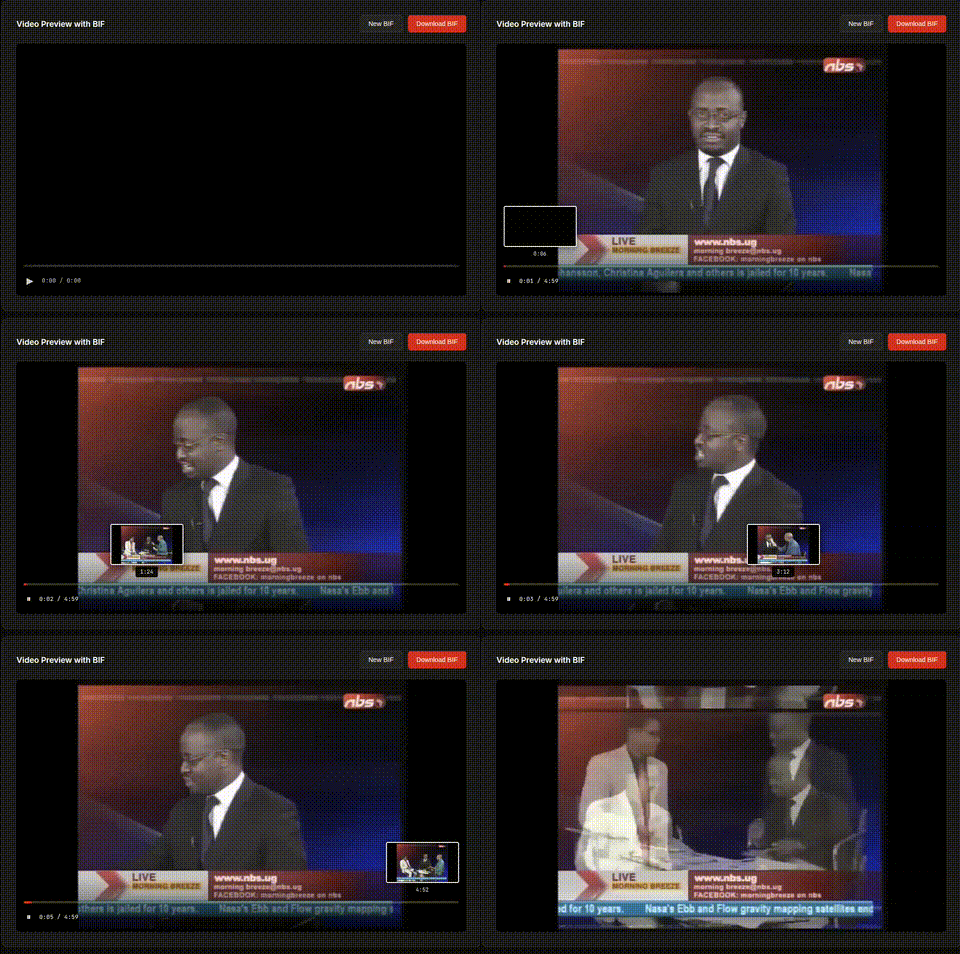
The web interface provides drag-and-drop upload, configurable intervals, and real-time progress updates. You can preview the generated BIF right in the browser.
Get the Tool
The BIF generator is open source and available on GitHub:
https://github.com/amankumarsingh77/bif-generator
Try it out if you're building anything with video thumbnails. BIF is simple, effective, and this tool makes it easy.
Last updated 2026